Status Update
 |
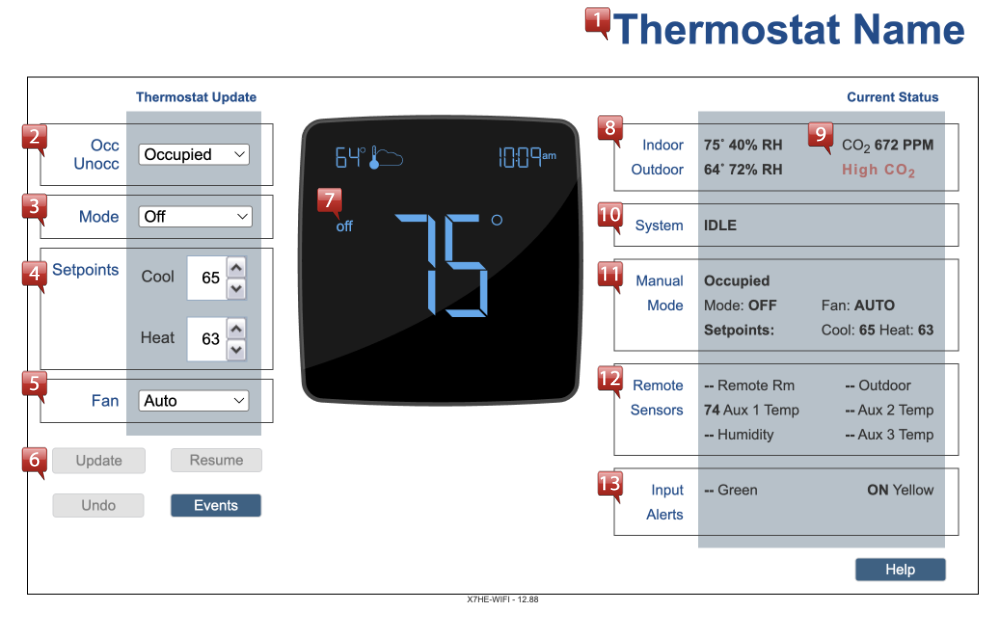
Thermostat Name: Name for the thermostat as entered on the Basic Config page. |
 |
Occ/Unocc: Displays whether the thermostat is currently running the occupied or unoccupied setpoints. When the thermostat faceplate is locked, this menu will also have the option for override. Use the drop-down to switch between occupied and unoccupied setpoints (as well as override when locked). The override option will change the setpoints for the duration of the override timer set on the configuration page or the installer menu at the thermostat faceplate. NOTE: Occ/Unocc only displays when the thermostat is in Non-Programmable (Manual) Mode. |
 |
Mode: Displays the current mode setting of the thermostat. To change the mode, use the dropdown menu and select the Update Button outlined in #6 of the help guide. |
 |
Setpoints: Controls the heat and cool temperature of the thermostat. To adjust, use the up and down arrows next to each temperature to adjust. When finished adjusting, use the Update button in #6 of this help guide. NOTE: If the thermostat is set for heat only or cool only, only the allowed temperature setting will display. |
 |
Fan: Controls the fan speed of the thermostat. Depending on the configuration, fans can be operated at up to three speeds (Low, Med, High). When finished adjusting, use the Update button in #6 of this help guide. NOTE: The fan speed configuration is located in the HVAC Settings on the thermostat available under the Configuration tab. |
 |
Action Buttons:Update: The update becomes active only when one of the parameters above has been changed. Pressing this button will apply the settings to the thermostat. For thermostats with Schedules engaged, it will apply an override for the designated time. For Non-Programmable (Manual) Mode, Faceplate Unlocked. The Update Button will permanently change the setting for the selected Occ/Unocc setting. When the faceplate is locked, an additional option to set an override is available. Resume: Becomes available when the thermostat is currently in override. Pressing the button will return the thermostat to pre-override operation. Undo: Becomes active when any of the above parameters have been changed but not updated. Pressing this button will return the parameters to the initial settings when you first visit this page. Help: Pressing the Help button opens a secondary window with the help instructions for this page. |
 |
Graphic Thermostat: The center image on the page shows the current mode of operation, room temperature, the active schedule or override, and the day and time of the thermostat. |
 |
Indoor/Outdoor: Displays the detailed current status of the thermostat. The current indoor and outdoor temperature and humidity values are displayed. |
 |
CO2 Status: Models equipped with a CO2 sensor will show this section where the current reading can be seen in parts per million. High-level and sensor failure alerts will also appear flashing in red in this section if detected. Clicking on the current reading will toggle showing the max CO2 value for a few seconds, while clicking on the high-level alert, if present, will toggle showing the high-level threshold value in the same fashion. |
 |
System: Displays the current active System Status of the thermostat. |
 |
Schedule: Displays the current schedule, mode, setpoints, and fan speed setting. In Non-Programmable (Manual) Mode, the current schedule is replaced with the current Occupied or Unoccupied thermostat settings. |
 |
Remote Sensors: The thermostat includes the Advanced Remote Sensor Bus, allowing up to 6 different types of remote sensors to be attached to the thermostat. This block shows all of the detailed status information for each sensor. |
 |
Input Alerts: Input Alerts are designed to give a special indication of a potential system issue. Filter and Fault alerts can be set on the Alert Settings page. They can also be changed to be triggered by the LED 1 and 2 input terminals by selecting the LED1 and LED2 options for the Input Alerts section in the Basic Configuration page. These alerts will also activate an icon (wrench for Fault and a filter for Filter) on the thermostat screen display. |